You Saw Something You Couldn't Explain. Good.
Most people assume cinematic AI video requires expensive tools, technical expertise, or a production budget. It doesn't. This tutorial walks through the exact workflow for creating photorealistic cinematic video using one free tool and a phone. No camera crew. No studio. No editing software. Just Higgsfield and nine steps.
Marlon Brand
Founder, Undeniable · Last updated March 2026
That feeling you just had watching that video...
That little pause where your brain went “Wait... what?... Wow.”
That's not an accident.
That's what happens when something breaks the pattern your eyes have been trained to expect.
And you just watched it happen with one free tool and a phone.
Here's exactly how.
The Full Breakdown
Record Your Reference Video
Record yourself doing whatever motion you want the final video to have. Walk down a hallway. Turn your head. Lift a coffee mug. Whatever.
This is your motion blueprint. Everything else gets built around it.
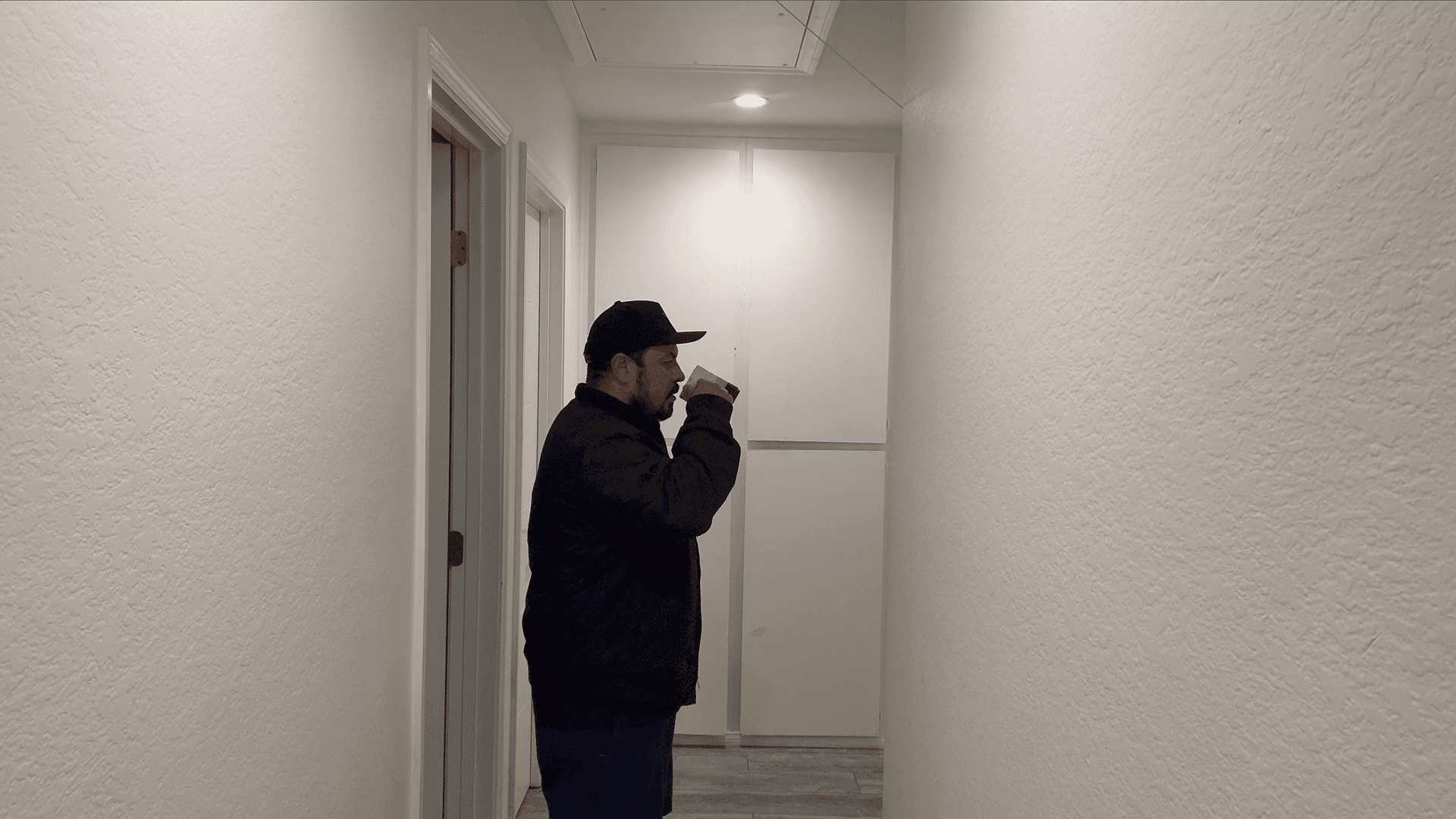
Your reference video. Phone quality is fine...the AI only needs your motion.
Grab a Reference Image
Screenshot a frame from that video. Doesn't need to be perfect. Just needs to show the positioning and environment clearly.
Open Higgsfield > Image Tab > Nano Banana Pro
This is where you build the scene you actually want to be in.
Imagine it fully before you touch anything. For us it was a detective standing in a narrow corridor... crime scene photos on the walls, red string connecting evidence, dim blue-grey lighting. Cinematic. Moody.

Higgsfield Image tab. Select Nano Banana Pro...it's the best 4K image model.

The generation interface. You'll upload your reference image here next.
Upload Your Reference Image
Hit the + button in the top left. Upload that screenshot.

Your reference image uploaded. The AI will use this for positioning and layout.
Prompt It
Use this structure...
“Positioning, body movement and room layout should be exactly like the reference image. [Describe your character in detail]. [Describe the scene]. [Lighting and atmosphere]. Cinematic. Ultra-realistic.”
Here's what we used:
“Positioning, body movement and room layout should be exactly like the reference image. A heavyset man with a short beard wearing a black cowboy hat stands in profile inside a narrow corridor, holding a coffee mug close to his face. He is wearing a dark navy slim-fit blazer over a white dress shirt and dark fitted trousers. The corridor walls are covered in crime scene photographs, newspaper clippings, yellow sticky notes, and red string connecting evidence in a chaotic web. Dim, moody blue-grey overhead lighting. Deep shadows. Intense brooding focus. Cinematic crime thriller atmosphere. Ultra-realistic.”
Hit generate.

Regenerate If It's Off
If the image comes out distorted or wrong... regenerate. This is normal. Keep going until the positioning and feel are right.

Distorted. Regenerate.
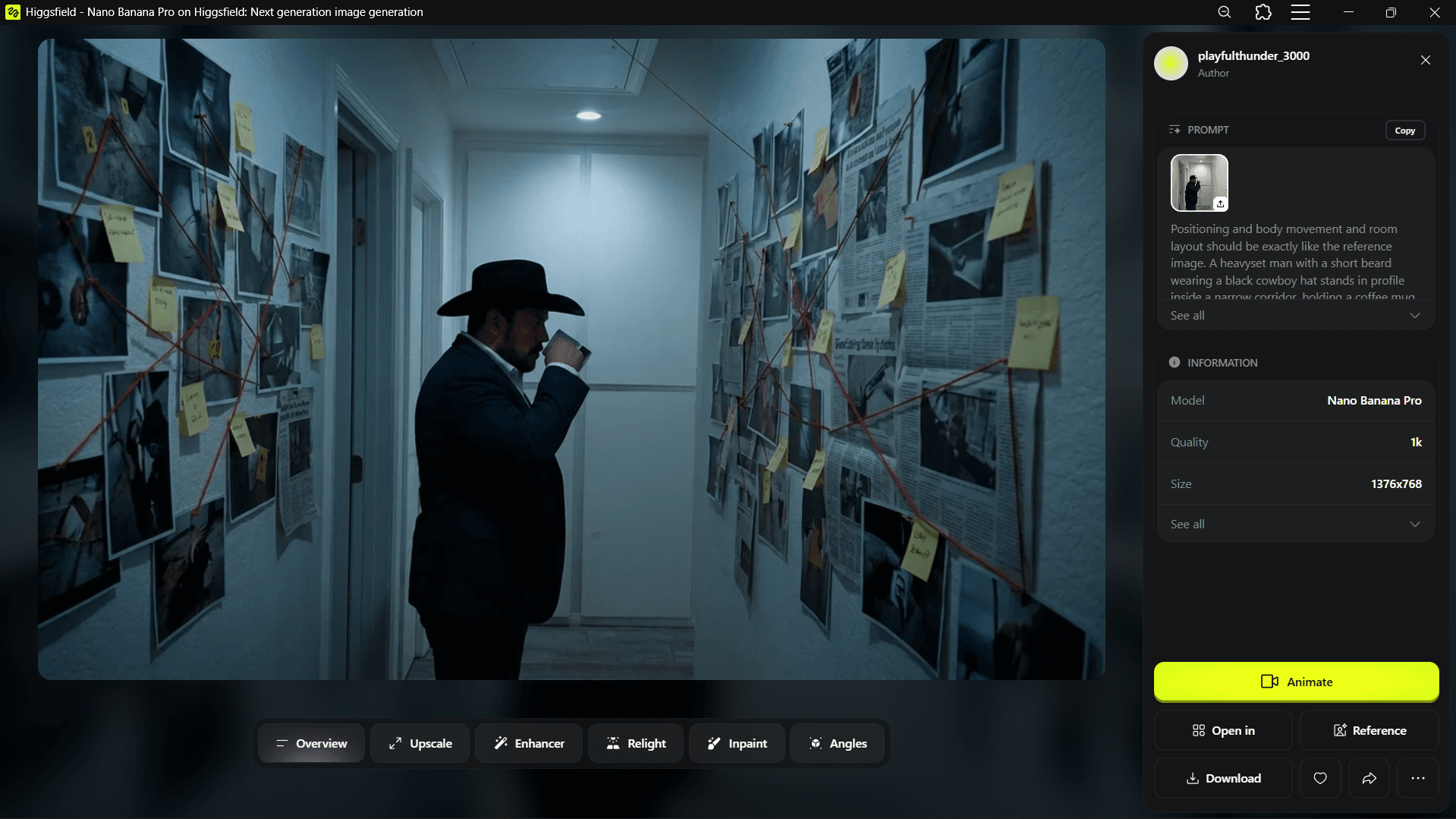
That's the one.
Upscale It
Once you have the image you want...
- →Click “Open In” at the bottom right.
- →Select “Upscale.”
- →Click x2 and hit Upscale.
Download it. Now you have two files... your original reference video and your upscaled AI image.
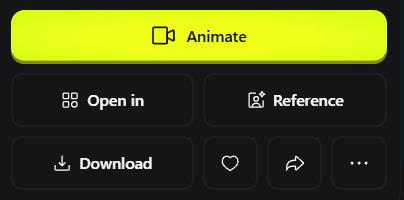
Click “Open In”
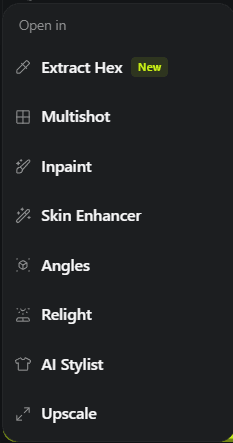
Select Upscale
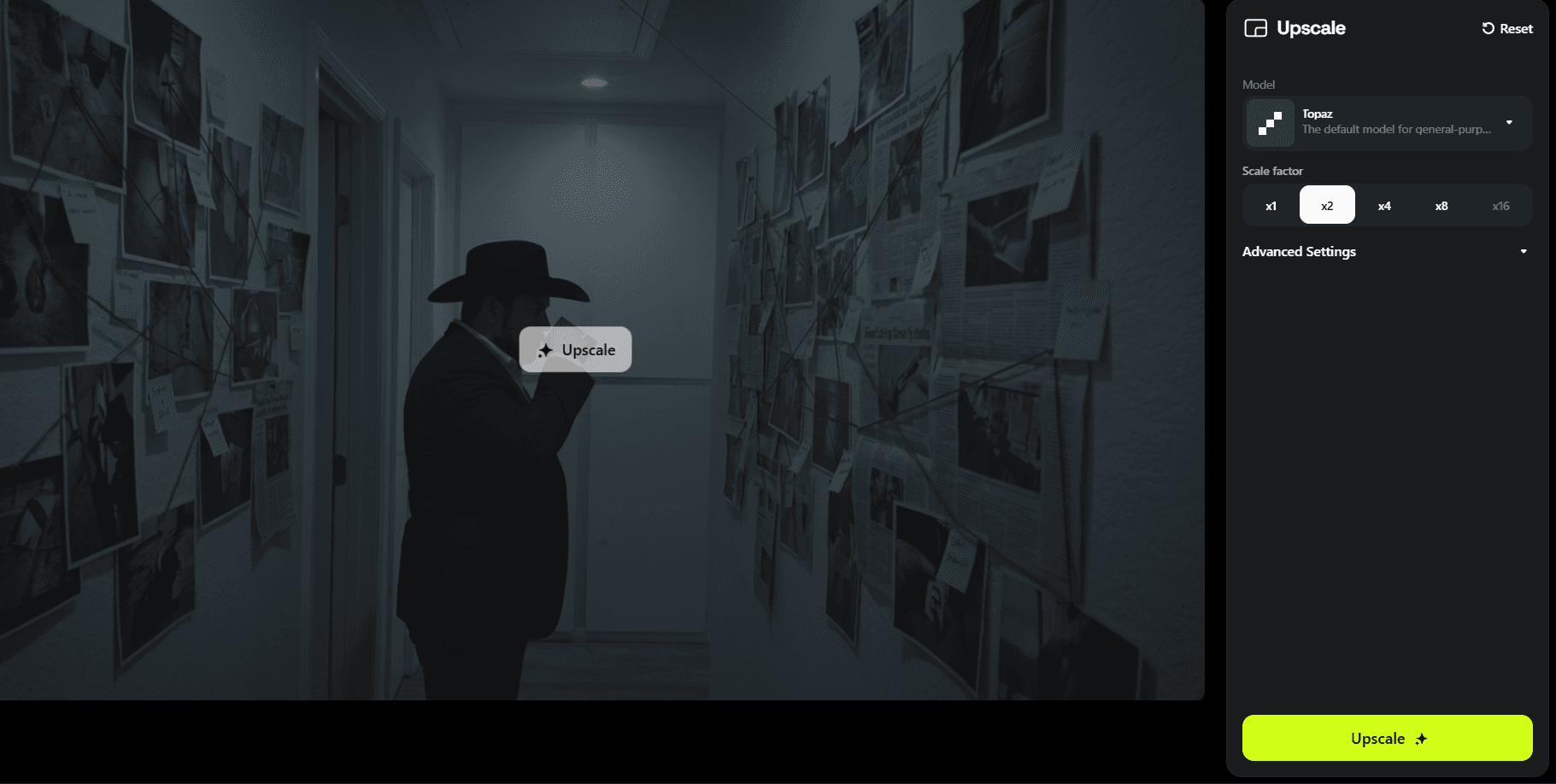
x2 upscale. Download when done.
Open Kling 3.0 Motion Control
Go to the video tab. Select Kling 3.0 Motion Control.
- →“Add Motion to Copy” tab... upload your original reference video.
- →“Add Your Character” tab... upload your upscaled image.
Very important: Enable Scene Control and set it to Image.
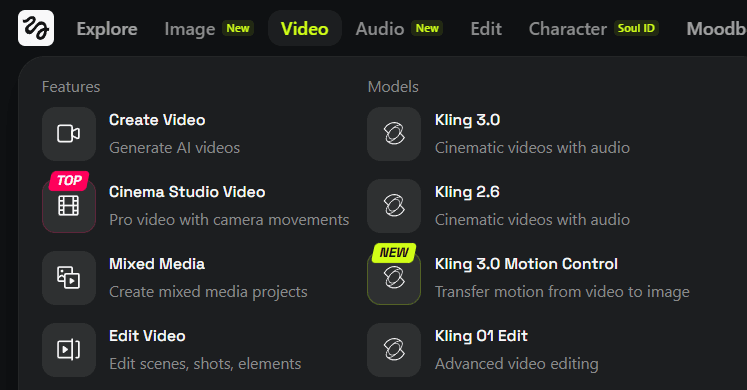
Video tab. Kling 3.0 Motion Control...this is where motion meets image.
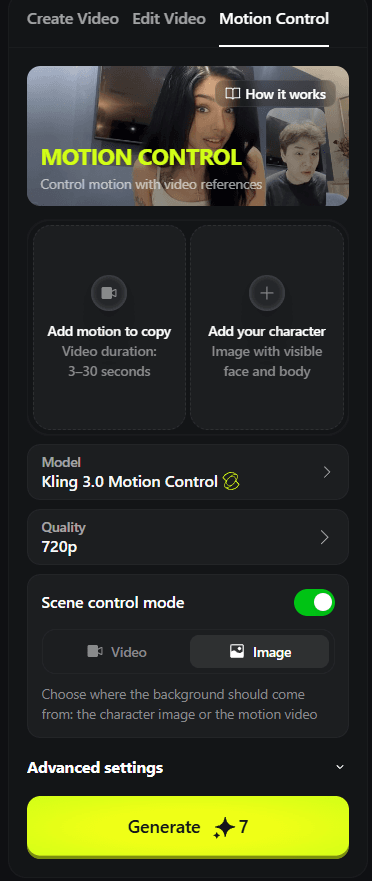
Upload slots ready
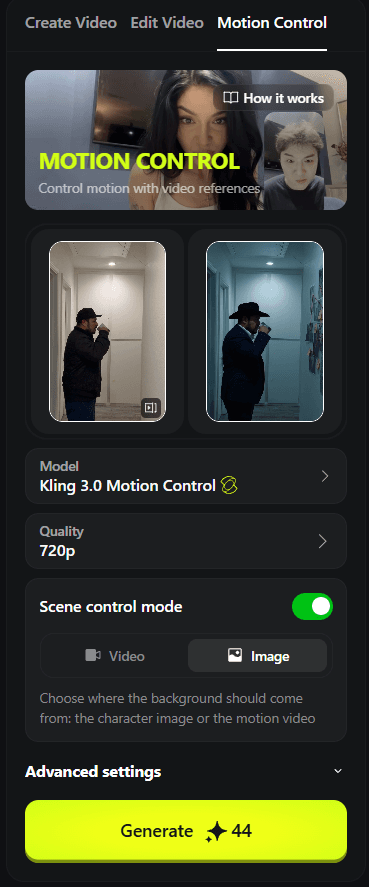
Both uploaded. Scene Control: Image.
Prompt the Motion
“Camera stay still. Copy exactly the motion from reference. No unnecessary movements added. Realistic movements only. No morphing, no AI distortion. Photorealistic human motion only.”
Hit generate.
Done.
Your motion. Your scene. Your character. Something that looks like it cost thousands... made with Higgsfield and a phone.
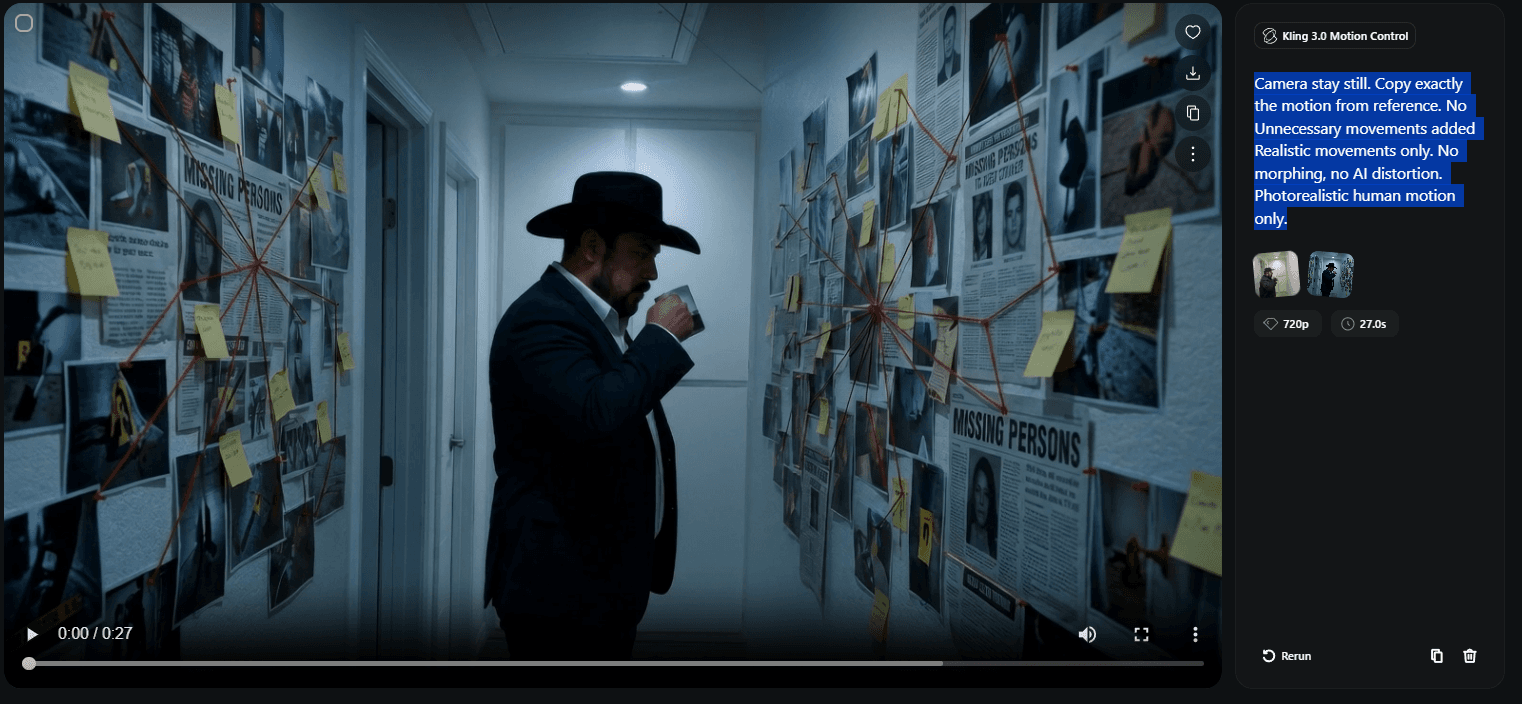
The final output. 27 seconds of cinematic video. One tool. One phone.
Now Think About What You Just Did
You just created a cinematic ad creative... without a camera crew, without a studio, without a budget.
Six months ago this wasn't possible.
Six months from now everyone will know how to do it.
Right now... almost nobody does.
That window is open. And it's closing.
We're building something for the people who want to stay ahead of it.
Already shipping multiple ads per campaign? The pipeline version of this workflow runs the same Higgsfield render through Claude Code and produces four awareness-stage variants from one prompt. Walkthrough at /ai-ad-pipeline. Once the variants are rendered, Meta's official MCP handles upload and management from the same chat... /run-meta-ads-from-claude walks the install.
Already Running Meta Ads?
We built an agent for that. It's live right now.
It writes your Meta ads across all five awareness levels. Writes your landing page copy. Writes your emails. Gives you a dual analysis report and decision-making framework for every campaign.
One system. Installs in 60 minutes. Built from $1.6M+ per month in Meta ad spend.
The Creatives Agent
What you just learned in this tutorial... that's the manual version.
We're building an agent that creates ad creatives on command. Pulls from research. Iterates off your winning angles. Tests new concepts based on what's already working.
It's not live yet. But it's coming soon.
Join the Creatives Agent Waitlist
The people already inside will get first access when it drops.
Frequently Asked Questions
More from the Lab
How We Cut Cost Per Lead from $16 to $5.43
The creative strategy framework behind it. Same budget, same targeting. Different creative.
Read →--meta-adsMeta Ads Credit Card Deadline: What to Do Before April 1st
How to switch billing, what it means for cash flow, and the exact message to send each type of client.
Read →--lead-genFacebook Lead Forms vs Landing Pages
Which funnel setup actually converts and when to use each.
Read →--ai-toolsClaude vs ChatGPT for Coaches and Consultants
Which AI actually does the work? Architecture, persistence, and compounding compared.
Read →--ai-toolsControl Your Computer From Your Phone Using Claude
Step-by-step Remote Control setup. No coding required. 10 minutes.
Read →--claude-codeClaude Code Slash Commands That Actually Matter
The slash commands that build persistent context instead of disposable chats. /init, /memory, /compact, /plan, and custom skills.
Read →--claude-codeClaude Code Routines: Run Your Work Without Being There
Saved AI sessions that run in Anthropic's cloud on a schedule, webhook, or GitHub event. Four routines that cut the Supervision Tax in half.
Read →--claude-codePut Video on Your Service Page Without a Video Team
Claude Code writes the code, Remotion renders the MP4. Roughly ten minutes from cold machine to a thirty-second branded promo for the page that matters most.
Read →--case-studyInside a Restaurant Franchise Intelligence Platform We Built
A role-based dashboard platform that automated POS data, financial reporting, and store performance across a multi-location restaurant franchise.
Read →--geminiGemini Multimodal: The AI That Sees Your Work
When to use Gemini instead of Claude or ChatGPT. Video, photos, recordings, and image generation for coaches and consultants.
Read →--email-deliverabilityGet Out of Spam — Or Keep Losing Revenue in Silence
Why your emails land in spam and the infrastructure framework for fixing it.
Read →--meta-adsHiggsfield MCP: Four-Variant Ad Pipeline From One Prompt
Install Higgsfield as a Claude Code connector. One prompt produces four awareness-stage video ads, Reels-vertical, ready for Meta Ads Manager upload.
Read →--meta-adsRun Meta Ads from Claude (Official MCP Guide)
Install Meta's official MCP for Claude Desktop, Claude.ai, or ChatGPT, or the Meta Ads CLI for Claude Code. Free during open beta, no developer app required.
Read →--meta-adsClaude Cowork for Creative Strategists
Three saved Cowork prompts that compress Meta-ads research: Ad Library teardowns, multi-brand monitoring, and review-to-persona research feeding the next brief.
Read →--free-toolClean Copy — Make AI Text Sound Human
Free browser tool that strips AI tells from your copy. Paste, pick a mode, get human output.
Try it →--free-courseLearn Claude Code — Free 5-Lesson Video Course
Set up VS Code with Claude Code, build a landing page, and deploy live with Vercel. Five lessons, no coding experience required.
Watch free →--ai-toolsSix Steps to a Claude That Actually Works for Your Business
Set up Claude with memory, projects, and custom writing styles so it works like a trained team member. Six setup steps that compound.
Read →--ai-toolsHow to Switch from ChatGPT to Claude (And Why It Matters for Your Business)
Where Claude outperforms ChatGPT for business work, and how to bring your ChatGPT context into Claude in about twenty minutes.
Read →--ai-toolsClaude Cowork: Stop Asking. Start Delegating.
Getting started with Claude Cowork. Covers Global Instructions, autonomous tasks, and saved Skills. For business owners who want to delegate, not just chat.
Read →Want to See What AI-Powered Marketing Looks Like?
We use AI to build, launch, and scale faster than any traditional agency. One new client per quarter.
// the window is open... it's closing
Apply to Work With UndeniableNo commitment. No pitch deck. Just a straight conversation about what's possible.